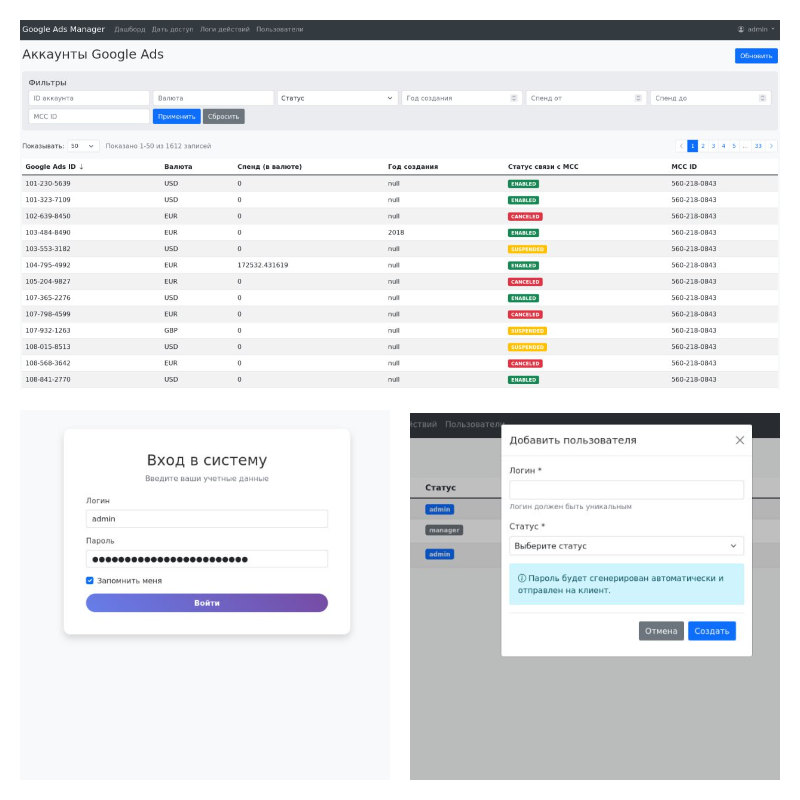
Receives and organizes client Google Ads accounts from MCC (via API)
Allows granting access (email + role) to a specific account with a button
Automatically manages accounts by emulating the Google Ads interface (Playwright)
1. Backend (FastAPI or Django)
Connection to Google Ads API (via OAuth2, MCC structure)
Retrieving a list of all client accounts (customer_client)
REST API:
GET /accounts — list of accounts (ID, name, status, creation date)
POST /access/request — request for granting access (email, account, role)
GET /access/status — list of access requests (successful / error / in process)
Task queue for granting access (e.g., Celery + Redis or similar)
2. Playwright bot
Works with the task queue
Logs into the Google Ads interface (using saved authorization / cookies)
Searches for the required account by 10-digit ID through global search
Navigates to “Access and Security”
Enters email and selects the required role (e.g., admin / viewer)
Sends invitation
Saves execution status (success / error + log)
3. Frontend (React, Next.js or another stack of choice)
Table of all accounts from API
Filters: by status, creation date, ID, etc.
Form for granting access:
Input email
Select role
Button “Grant Access”
Allows granting access (email + role) to a specific account with a button
Automatically manages accounts by emulating the Google Ads interface (Playwright)
1. Backend (FastAPI or Django)
Connection to Google Ads API (via OAuth2, MCC structure)
Retrieving a list of all client accounts (customer_client)
REST API:
GET /accounts — list of accounts (ID, name, status, creation date)
POST /access/request — request for granting access (email, account, role)
GET /access/status — list of access requests (successful / error / in process)
Task queue for granting access (e.g., Celery + Redis or similar)
2. Playwright bot
Works with the task queue
Logs into the Google Ads interface (using saved authorization / cookies)
Searches for the required account by 10-digit ID through global search
Navigates to “Access and Security”
Enters email and selects the required role (e.g., admin / viewer)
Sends invitation
Saves execution status (success / error + log)
3. Frontend (React, Next.js or another stack of choice)
Table of all accounts from API
Filters: by status, creation date, ID, etc.
Form for granting access:
Input email
Select role
Button “Grant Access”